
Filter Presets
Filter presets let you save and reuse combinations of filters. VarLens ships with built-in presets for common clinical workflows, and you can create your own.
Preset Bar

The preset bar appears below the toolbar. Click a preset chip to toggle it on or off:
- Active presets are filled with the primary color
- Inactive presets have an outlined border
- Multiple presets can be active at once (their filters combine with AND logic)
- Hover over a preset to see its description
Built-in Presets
These presets ship with VarLens and cover common filtering needs:
| Preset | Filter | Use case |
|---|---|---|
| Rare Pathogenic | gnomAD AF ≤ 1% + ClinVar Pathogenic/LP | Known rare pathogenic variants |
| Rare HIGH | gnomAD AF ≤ 1% + Impact HIGH | Rare loss-of-function variants |
| Rare HIGH+MOD | gnomAD AF ≤ 1% + Impact HIGH or MODERATE | Broader rare impact filter |
| Ultra Rare HIGH | gnomAD AF ≤ 0.01% + Impact HIGH | Near-absent LoF variants |
| ClinVar P/LP | ClinVar = Pathogenic or Likely pathogenic | Known pathogenic variants |
| HIGH Impact | Impact = HIGH | Loss-of-function variants |
| Rare (1%) | gnomAD AF ≤ 1% | Standard rare variant threshold |
| CADD >= 20 | CADD Phred ≥ 20 | Strongly predicted deleterious |
Built-in presets cannot be deleted, but you can hide them from the preset bar.
Saving a Preset
When you have filters active, the Save button appears in the preset bar:
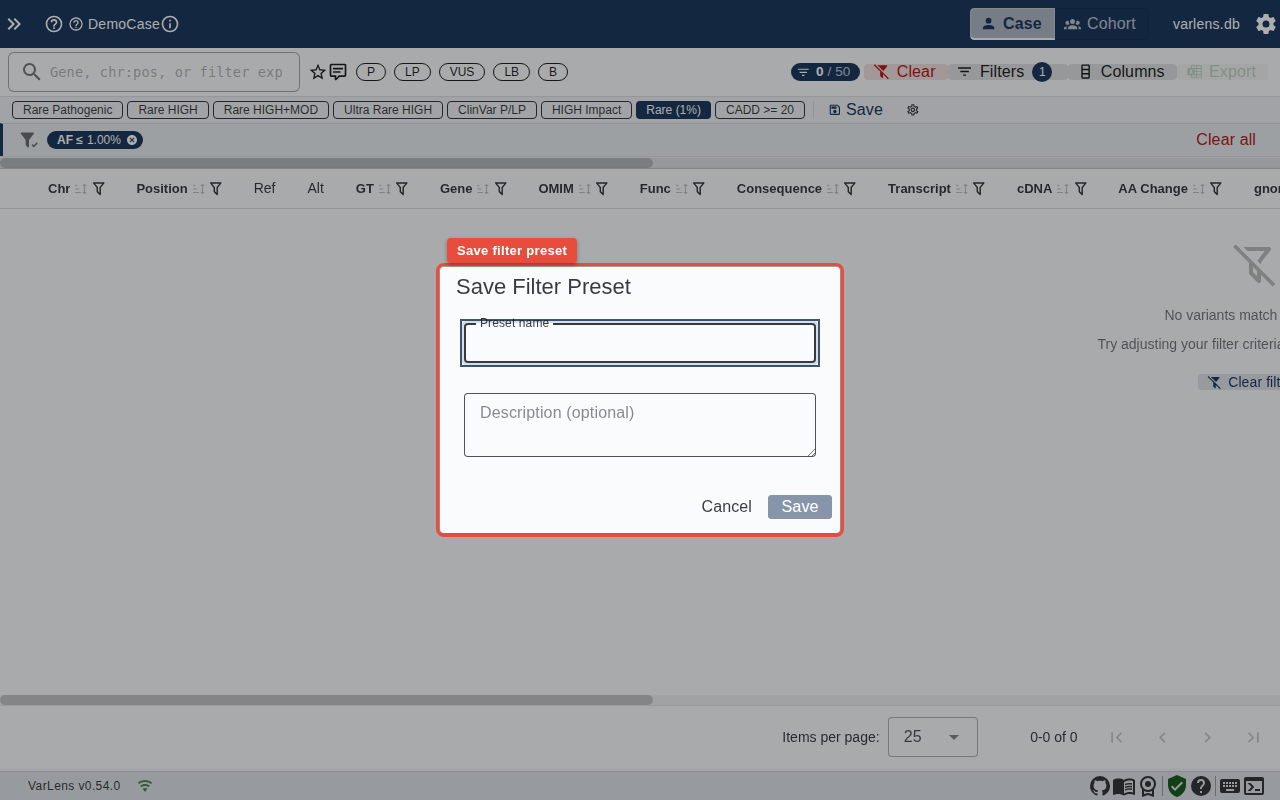
- Click Save
- Enter a name (required) and description (optional)
- Click Save — your current filter state is stored as a new preset
Your preset appears in the preset bar and persists across sessions (stored in the database).
Managing Presets
Click the gear icon in the preset bar to open the manage dialog:
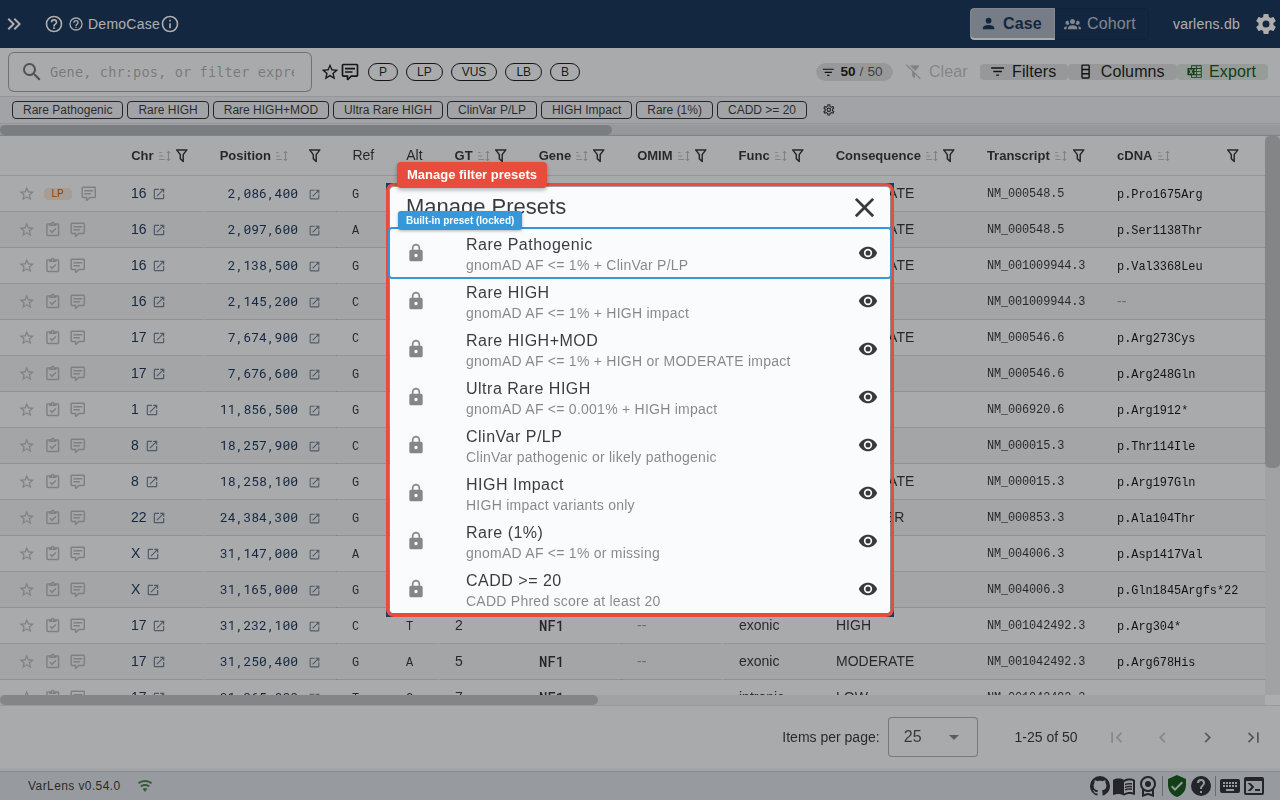
From here you can:
- Toggle visibility — hide/show presets in the toolbar bar (eye icon)
- Delete user-created presets (trash icon)
- Built-in presets show a lock icon and cannot be deleted
Using Presets in the Search Bar
You can also activate presets from the DSL search bar by typing @ followed by the preset name:
@rare-pathogenicThe autocomplete dropdown shows available presets when you type @. Preset names are converted to URL-safe slugs (lowercase, spaces to hyphens, special characters removed).