
Importing Data
VarLens supports importing variant data from JSON files in several layouts.
Supported Formats
VarLens accepts several JSON formats for variant data:
- Columnar format:
{ "CaseName": { "header": [...], "data": [[...]] } }— tabular data with a header row and data arrays (also supported without the case-name wrapper) - Object format:
{ "metadata": {...}, "samples": { "sampleId": { "variants": [...] } } }— structured variant objects - Simple format:
{ "variants": [...] }— flat array of variant objects
Files must be gzip-compressed (.json.gz); uncompressed .json files are not currently supported.
For detailed format specifications, see Supported Formats.
Importing a Single Case
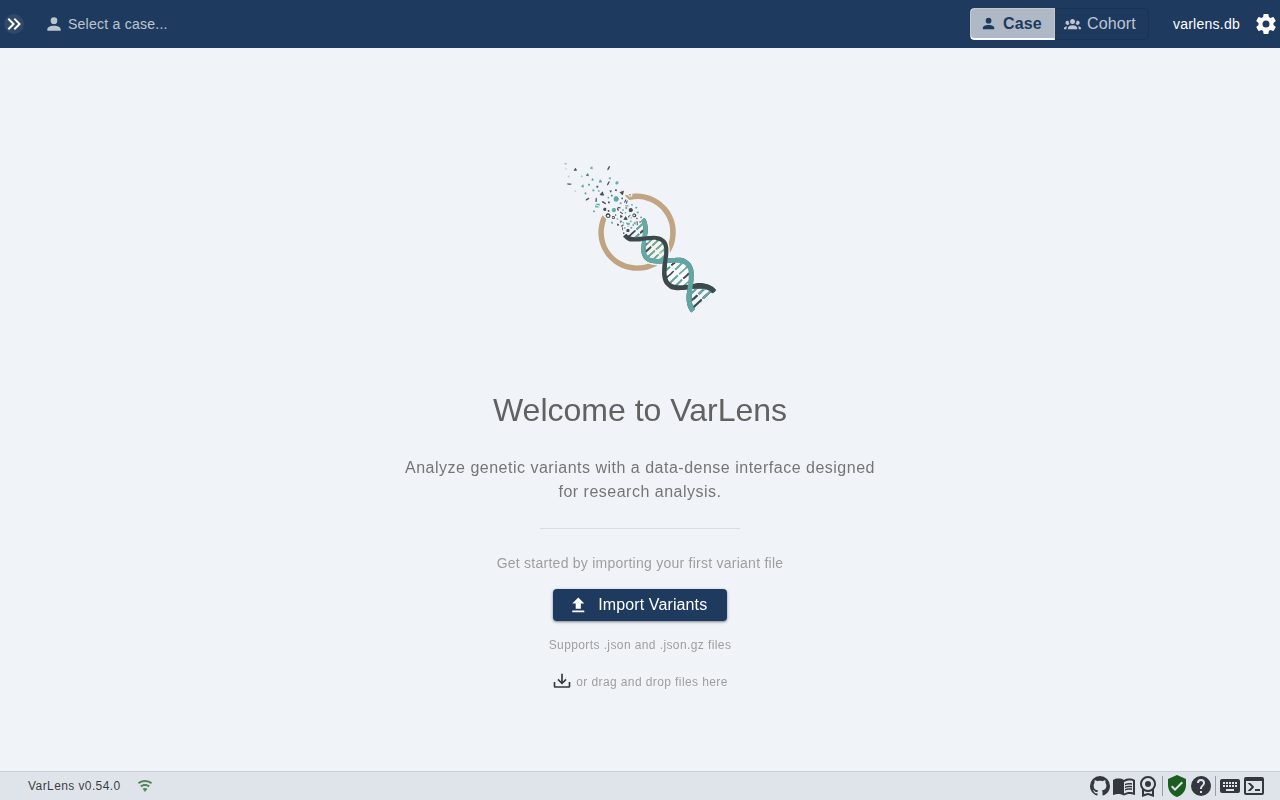
- Click the + button in the sidebar and select Import File
- Select your variant file from the file dialog
- Enter a case name (or accept the auto-generated name from the filename)
- VarLens imports the data, showing progress in real-time (reading, parsing, inserting phases)
After Import
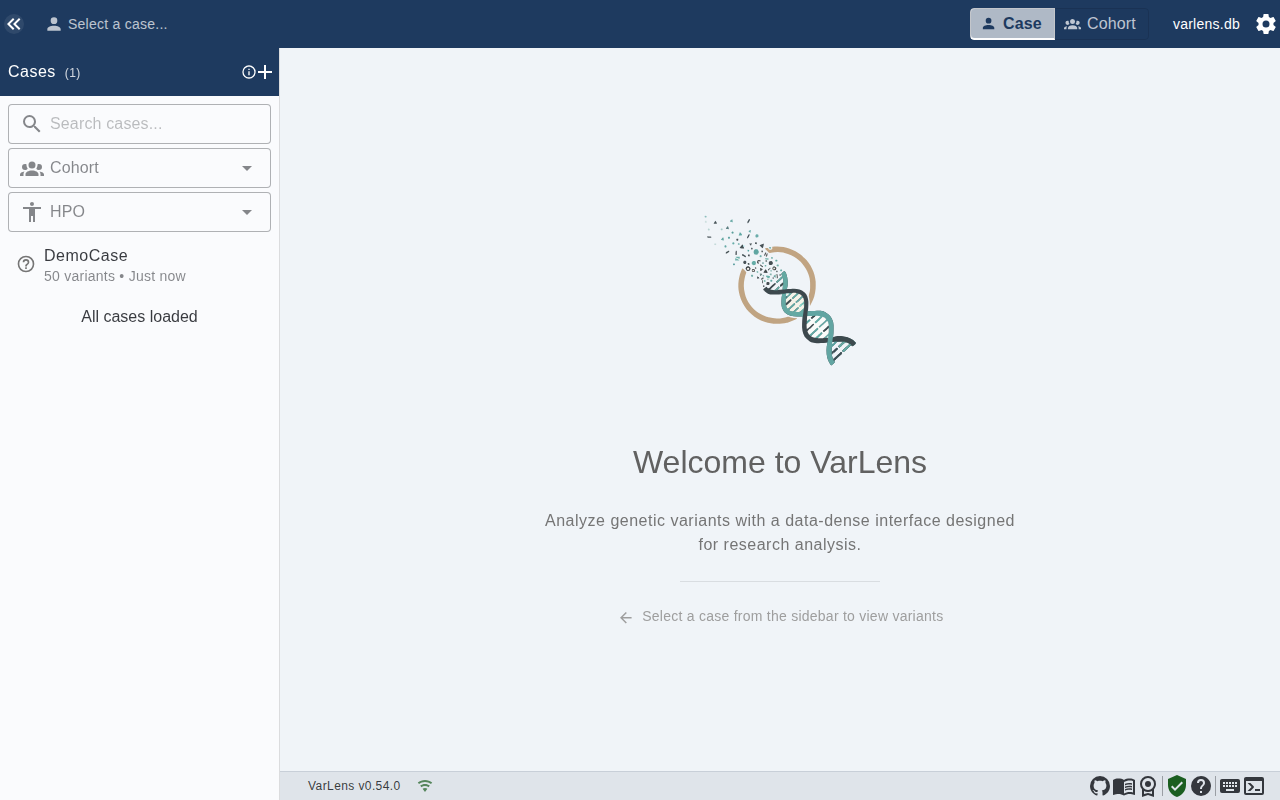
Once import completes, the case appears in the sidebar. Click it to open the variant table.
Case Metadata
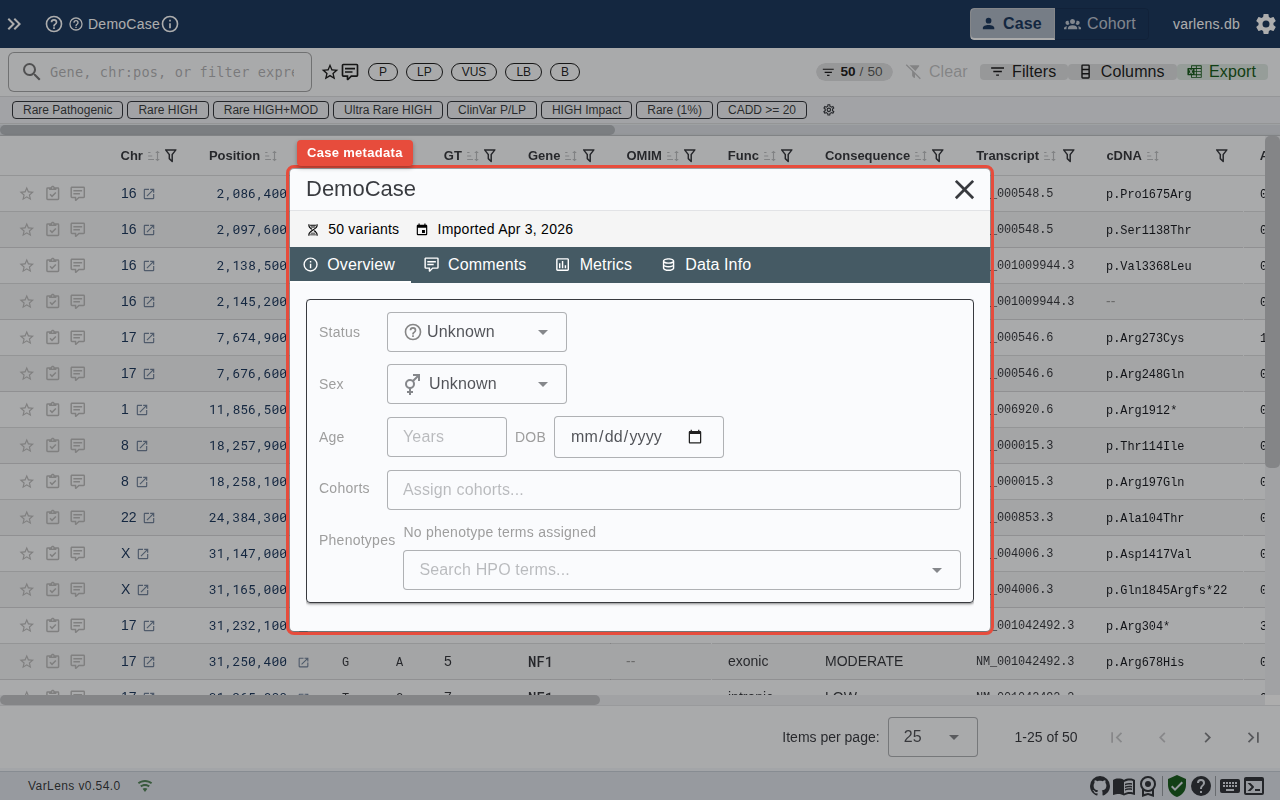
Click the case name in the header bar to open the case metadata modal. Here you can view and edit case details including status, cohort assignment, HPO terms, comments, and quality metrics.
Batch Import
For importing multiple files at once, click the + button in the sidebar and choose Import Multiple Files, Import Folder, or Import ZIP Archive. Files are processed sequentially with duplicate detection and a summary on completion.
Tips
- Large files (>100,000 variants) may take a few minutes to import
- Import progress shows the current phase (reading, parsing, inserting) and variant count
- You can cancel an import in progress without losing previously imported data